
What to do if your email stops working.
Email Disruptions, What Can Cause Them, And What To Do.
We work hard to avoid all email interruptions. Unfortunately, they still do happen occasionally. Either from human error or unforeseen software conflicts. The most common disruption will always be between your device and our server. This does not mean that your email is broken. It simply means the connection between your device and the server is broken. Most times you can continue using your email accounts online until whatever is causing the issue on your device(s) can be troubleshot and fixed.
Step 1, Simple Self Trouble Shooting.
If You Need to access the email account ASAP, Skip this section and scroll down to step #3.
If your Email stops working on a device, try logging back into it using the on-device prompts. This is useful for times when your device suddenly logs out of the email system for some reason. Do Not try to log in repeatedly if the first or second attempt fails.
You've tried step 1, and it worked, awesome you're done. You tried and it still doesn't work, scroll down.
Step 2, Contact Support
Step 2 is to contact us directly either by phone, text, email, or open a ticket.
Step 3, Login Online
Step 3 is for any time when you need your email Immediately. If you cannot reach support these options will get you back up and working.
There are 2 different ways to do this,
Option A,
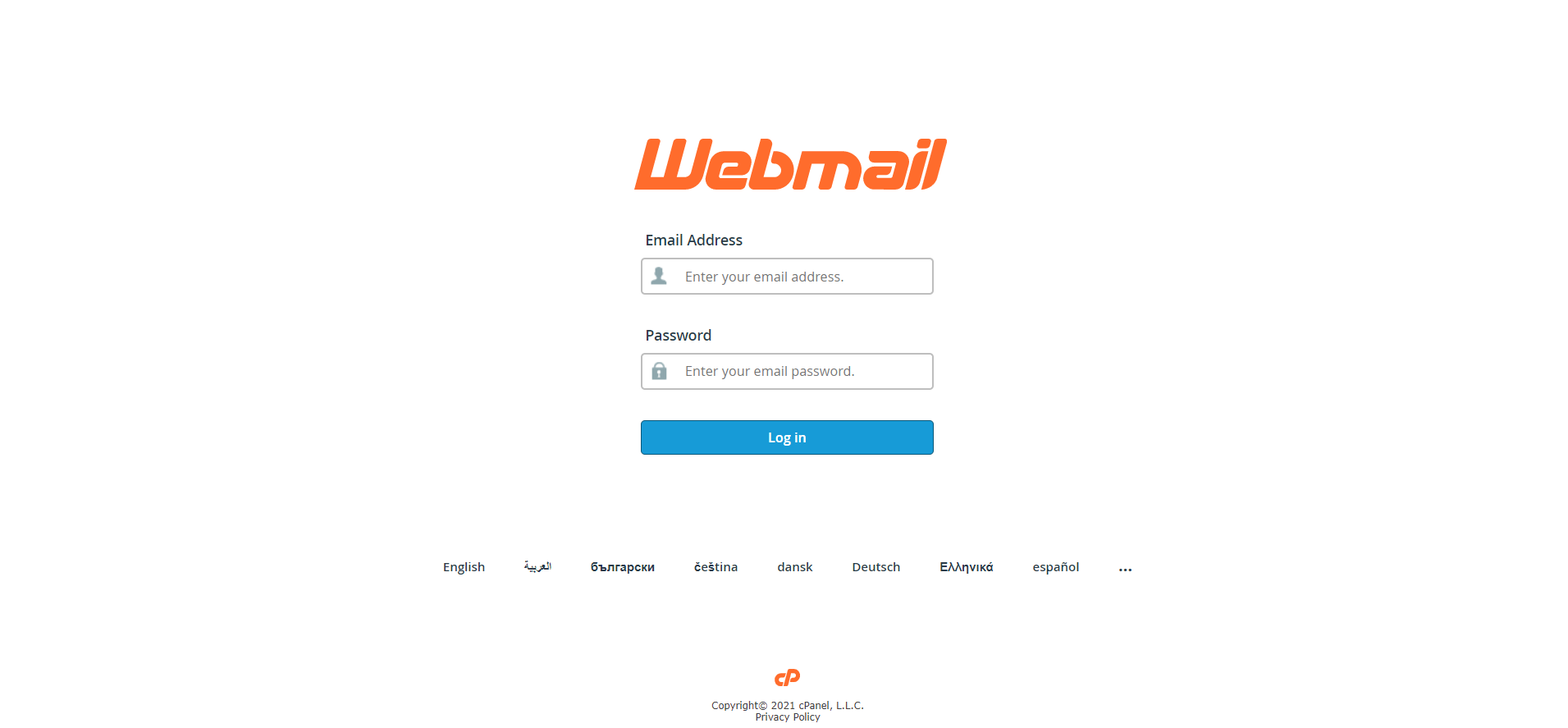
Option A is, visit https://yourdomain.com/webmail (replace "yourdomain.com" with everything to the right of the @ sign in your email address. For example, if your email is sales@123store.com, you will go to 123store.com/webmail. If you get any error messages, try using webmail.yourdomain.com. Only use this if the first option fails. In the login, fields enter your email and password and log in. This method will work with many hosting providers and is not exclusive to 1 Way Web. The login screen will look like this.
Option B,
Option B is, log into your customer account with 1 Way Web and go to services. In services, locate and click on the hosting account for the email in question. Scroll down to Quick Short Cuts and click Email Accounts. This will take you to the email account(s) page. Click the button labeled Check Email of the account you wish to view. If this is the first time viewing your email online, you may see a page that looks like this.
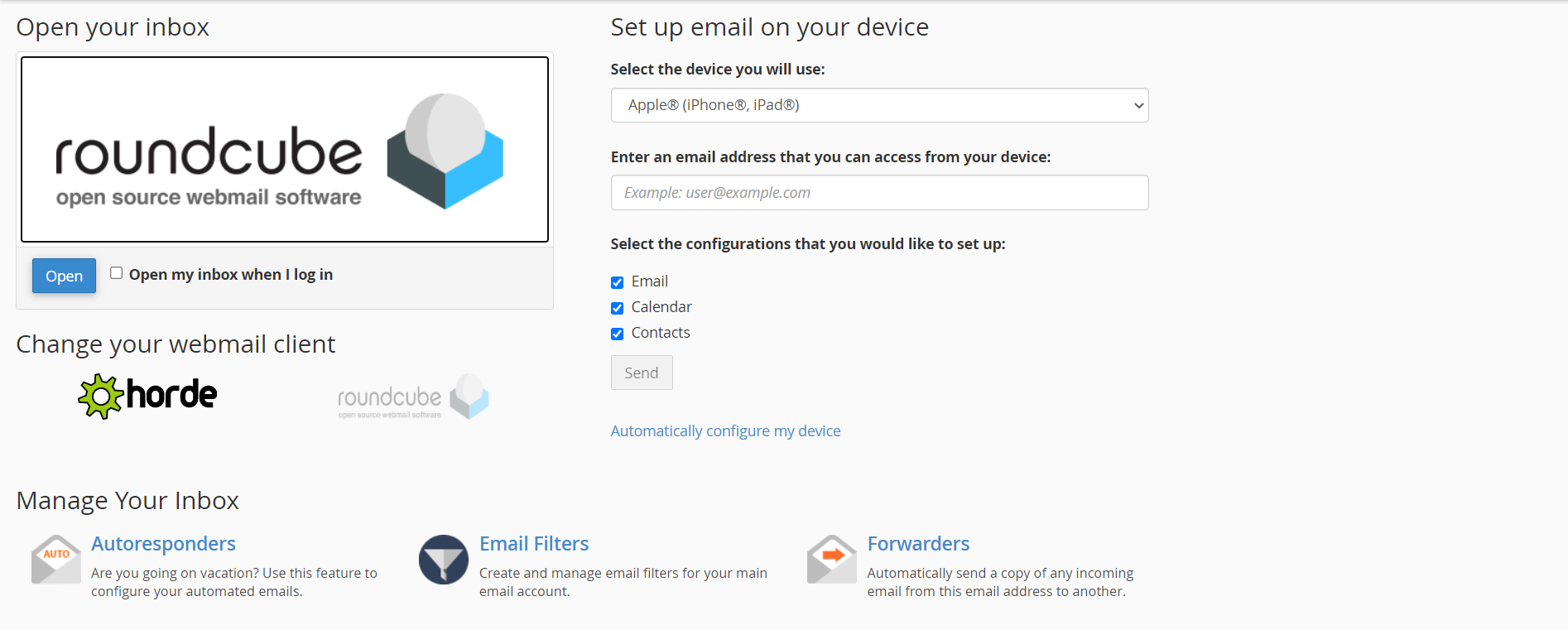
Clicking the box labeled Round Cube will take you directly to the email inbox. Checking the "Open My Inbox When I Log In" box then clicking Open will bypass this screen for future visits.
You can use option A or B from any internet-connected device. Option B is best if you don't remember your email password as you cannot reset the email password from the webmail login screen. If you don't remember the password for your client account, you can request an automatic reset code from the client login screen. If your client account email is the one you are having trouble with and it is not working on any of your available devices, you will need to contact us for assistance accessing your accounts.
Hopefully, this article was helpful. Please reach out to us with any further questions.
